
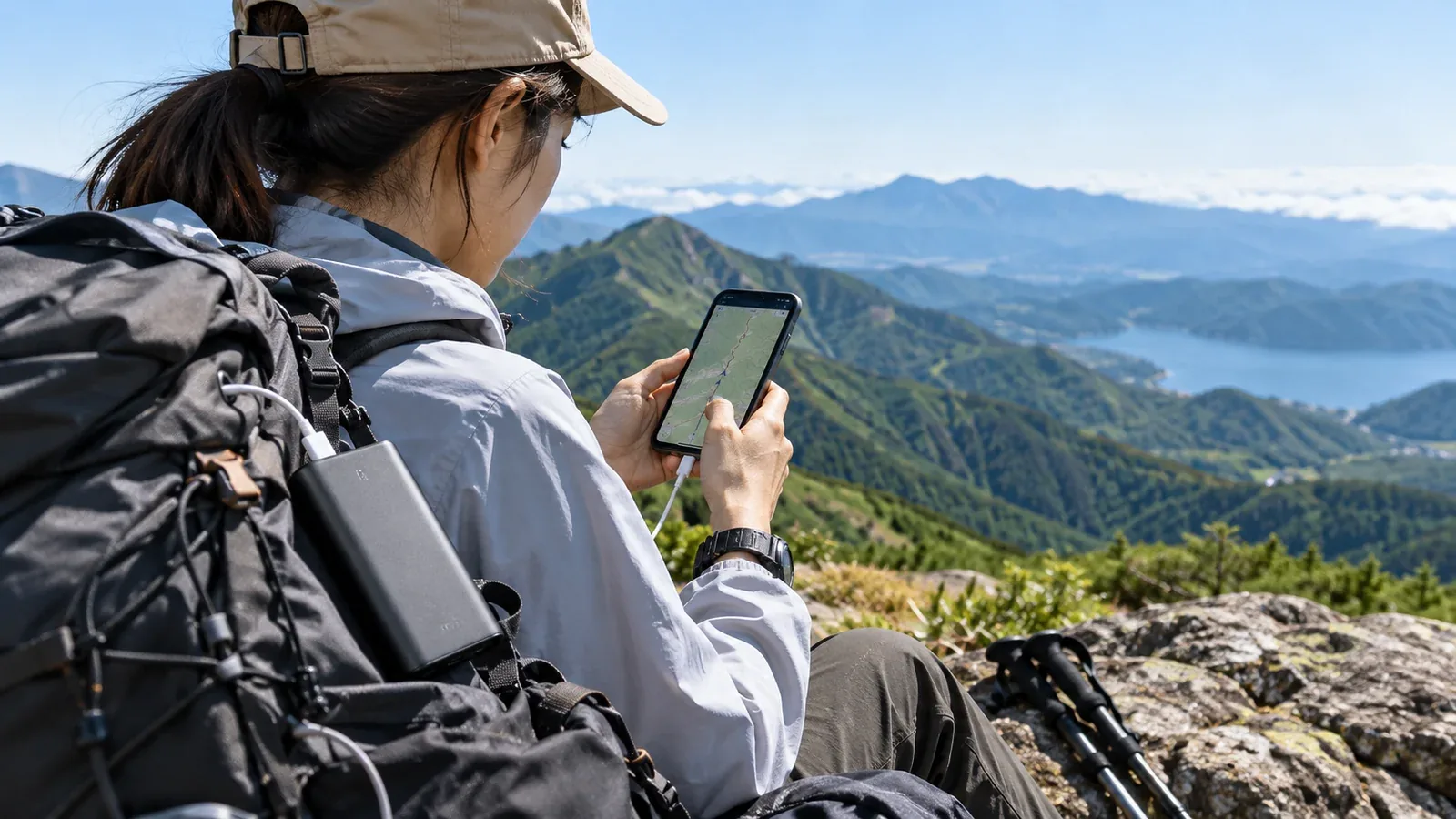
If your phone runs out of power on a hike, you lose its navigation and a way to call for help. A charged power bank gives you a reserve. The phone can also last longer if you prepare the maps and adjust settings before leaving.
Screen time, location updates, weak signals and background activity can all contribute to battery drain. The mix depends on the device, app and conditions. Check the settings that affect the way you use your phone on the trail.
This guide covers what to prepare at home, how to use the phone during the hike and how to test your setup in advance.
Why the battery can drain faster in the mountains
Knowing what draws power helps you decide which settings to change first.
Continuous location updates can use significant power. To record a track, the app requests positions throughout the hike. More frequent and more accurate fixes can draw more power, though the effect depends on how the app and phone obtain them.
Searching for weak or missing mobile service can also use power. Some phones show low coverage or signal searching in their battery usage information.
Cold can temporarily reduce battery life. A very cold phone can shut down or refuse to charge. Keep it dry in an inside pocket when practical, and warm it gradually before charging if the manufacturer recommends it.
Screen time adds up when you keep the map open or turn the display on often. Brightness and the length of time the display stays on both affect power use.
Settings to check before departure
Check the phone and navigation app while you still have power and a reliable connection. Once you know the controls, you can repeat the same check before each trip.
Phone settings
Adjust screen brightness. Use a brightness you can read easily. The setting that works in shade may be too dim on a sunny ridge. Know how to adjust it quickly.
Shorten the screen timeout. Choose a short interval that still lets you read and use the map. Lock the screen between checks if your app can continue any recording you need.
Consider airplane mode carefully. It can cut power spent searching for a cellular signal, and it also disables ordinary cellular calls and data while the cellular radio is off. Keep communications enabled when you need them. If you try airplane mode in a known no-service stretch, first check offline maps, location and any accessories. Know how to turn cellular service back on quickly. Coverage can return unexpectedly.
Review Wi-Fi and Bluetooth. Keep them on for equipment or features that need them. Apple says idle Wi-Fi and Bluetooth draw little power on iPhone. A blanket shutoff is unnecessary, and airplane mode can remember a previous Wi-Fi or Bluetooth setting.
Limit background activity for apps you will not use. Check the battery settings for apps drawing power in the background. Keep the permissions and background settings needed for navigation, recording and safety features. Test the setup with the screen locked.
Hiking app settings
Some apps let you change how often they record a position or the quality of the track. Check what your own app supports.
Choose a suitable recording interval. If your app offers a longer interval, it may reduce power use. A coarser recording can miss short turns or changes of pace. Use the interval you tested for your route and purpose, and keep any needed navigation alerts working.
Download offline maps over Wi-Fi. Save the full route and alternatives at home, then check that the map and route layers open without a network. A briefly viewed map may only be partly cached.
Check whether the app keeps the screen on. Turn off that option when you can safely navigate by waking the screen as needed.
Using the phone on the trail
Your habits during the hike also affect how long the phone lasts.
Check the map at decision points. Review your position and next turn at junctions or in unclear terrain. Between checks, lock the screen when you can. Check as often as you need to stay oriented.
Verify recording with the screen locked. Some apps can log while the phone is in your pocket. App permissions, background restrictions and battery saver can interrupt it. Test before depending on it and carry the device where it stays dry and accessible.
Protect the phone from cold. A dry inside pocket can keep it closer to body temperature. Keep it accessible enough to use with gloves if you need the map or a call.
Decide how to use battery saver. The effect varies by device. Some modes limit background app activity, location updates or alerts. Test whether recording and the features you need still work before you switch modes on the trail.
Using a power bank
Start with the phone and power bank charged, and pack a compatible cable. A paper map and compass still help if the phone or cable stops working.
Choose capacity based on how much charge the phone used during your test, the length of the trip and the reserve you need. A power bank’s rated capacity does not translate directly to phone charges because voltage, conversion losses and temperature affect the energy delivered. Test it with your own phone and cable.
Charge when you can keep the phone and connectors dry. At a sheltered stop you can set the phone down and avoid tugging on the cable. If the device is very hot or cold, let it return towards its normal operating temperature and follow the manufacturer’s charging instructions.
Protect the connector from strain. Choose a cable that fits the phone and pouch without a tight bend or pull. Keep the connector dry and disconnect the cable when you put the phone away if the fit is awkward.
How to test the settings before the hike
Try the setup on a familiar walk, such as a local park or an easy trail, where you can check the result without relying on it to find your way.
Start charged and compare similar walks using normal and reduced-power settings. Note the battery use and check the recorded track, screen-locked behaviour, route alerts and ability to open saved maps. Leave enough reserve for a longer day or a delay.
If the position or track looks wrong, check the app’s location permission, battery restrictions and recording settings. Restore the interval and power settings that worked, then test again outdoors. The phone can need time and a clear view of the sky to get a fix. Update or troubleshoot with the app or device maker’s instructions.
Before your next hike
Check display timeout, offline maps, recording, communications and spare power the day before you leave. If you use Nordwand to share trip logs or Base Camp updates, check what needs a connection and when you plan to share it. Keep your paper map and compass available throughout the trip.
References and sources
- Apple: battery activity and weak coverage
- Apple: battery care, Wi-Fi and Bluetooth
- Apple: temperature and battery performance
- Apple: Low Power Mode
- Google Pixel: Battery Saver and background limits
- Android Developers: location updates and battery use
- Apple: airplane mode and wireless settings
- Apple: charging with a dry connector