
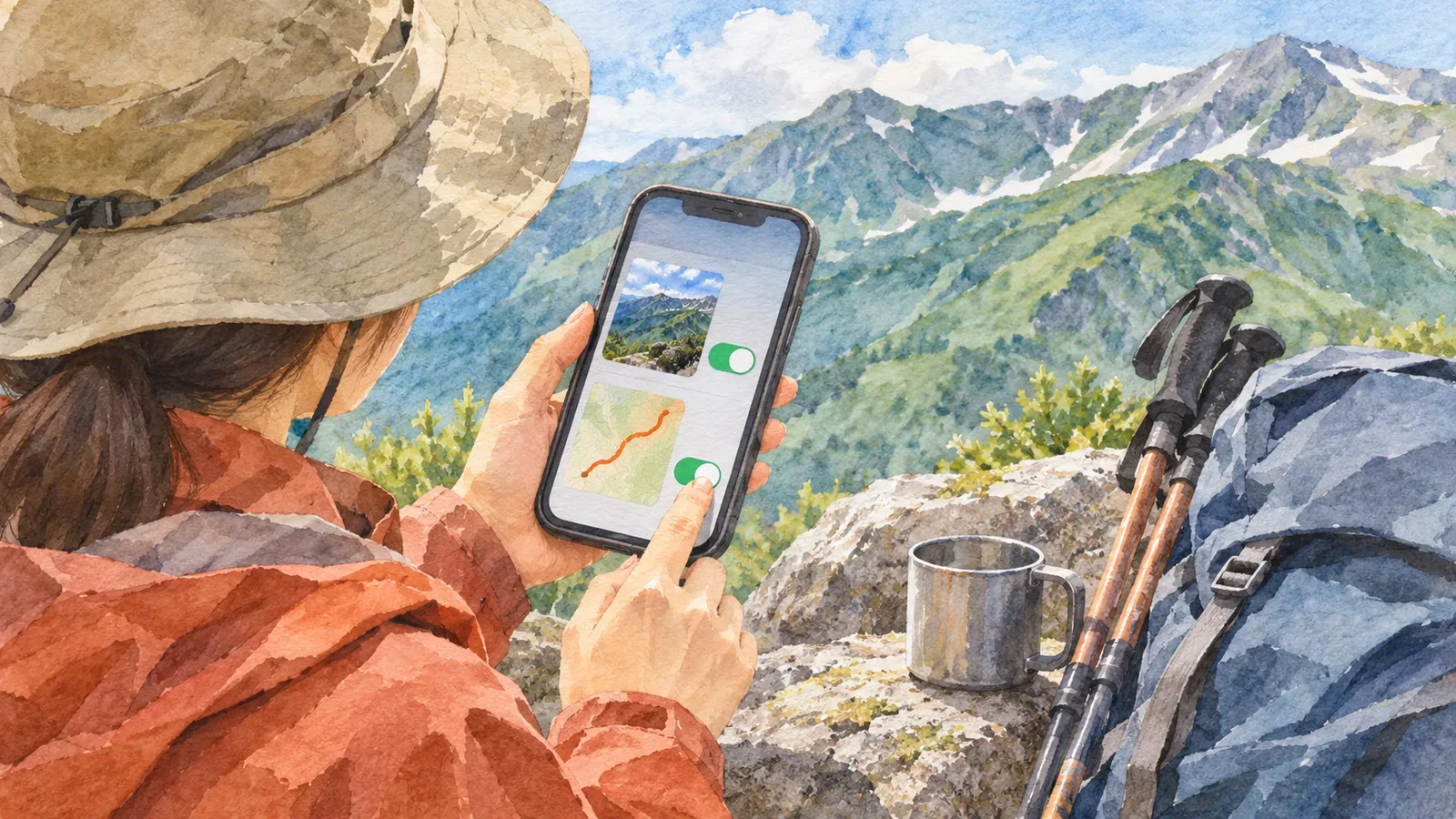
If you want to keep a photo's location private, check the photo information and what others can see in the log or track separately.Changing one setting does not establish that location data is handled as intended everywhere you share.This article uses official Apple, YAMAP and Strava guidance checked on October 29, 2026, to explain what to review from selecting photos through publication. Aligning the settings here means choosing how to handle the information at each destination based on what you want to show and who should see it.
Choose photo information and the log audience separately
Start by deciding which information you want to show to whom. The editors suggest distinguishing the mountain scenery, the place where you took the photo and the track you walked. A photo and a log of the same hike may have different audiences.
For example, you might want to tell your family about the hike and leave photos from the journey out of a public log. Write down which photos, text and parts of the track you want to show before choosing the log's visibility setting. This is an example for checking your choices, without a test on a particular family's devices or account.
YAMAP's official help shows how to make an activity log public or private while editing it. A public log is published on the internet and appears in followers' feeds. A separate help page covers making a photo private and hiding where it was taken. Check the log audience and the photo settings separately.
In Apple Photos, separate existing locations from future collection
Apple's Japanese-language Personal Safety User Guide explains that using Location Services for Camera embeds the coordinates in photos and videos. Recipients of photos or videos with location metadata may be able to see where they were taken. You cannot tell whether a file has coordinates by looking at the image.
The same guide shows how to open a photo on iPhone or iPad and swipe up or tap Info to view details. To remove the location from a specific photo, open the options for adjusting its information, choose the location setting and select No Location. The editors confirmed these steps in Apple's Japanese guide. Check the instructions for your device and OS if your screen looks different.
To stop the camera from collecting locations for future photos, the guide says to open Settings, then Privacy & Security, Location Services and Camera, and select Never.Turning off future collection and changing information in existing photos are separate tasks.
Removing location data does not guarantee permanent removal from originals, edit histories or copies already shared. For example, the same guide explains how to hide a location in Photos on Mac and how to restore the original location. Check the change alongside the way you plan to share the file.
Check the data being shared and the guide version
Apple's iPhone User Guide explains that sharing photos and videos also shares metadata such as date, time, location, device and captions. The Japanese page labeled iOS 27 that the editors consulted on October 29, 2026, says the All Photos Data option shares the original file, edit history and metadata, and is available for AirDrop. If you want to keep the location private, review what will be sent before choosing to include the original data.
The Personal Safety User Guide also shows how to turn off Location in the sharing options. The iOS 27 sharing page does not list that option. Its absence from the page does not show that the feature is gone or that the same switch appears in the same place on every OS. Compare the device screen with the version covered by the guide. If you cannot verify what will be shared, hold off on sending the photo.
Check the particular photo and method you plan to use this time. Changing what the library shows, choosing what data to share and posting in a hiking app each need their own check.You can verify these settings without starting by sending the original photo to see whether the recipient can find the location.
Match app map settings to the way you handle photos
Strava's Map Visibility setting lets you hide part or all of a map from other users. It is separate from activity privacy. Strava explains that the setting applies to activities on Strava and does not travel with them to other services. Check photos or data you send elsewhere separately.
Hiding a photo's shooting location in YAMAP and managing location data in a photo stored on your device are also separate checks. Review YAMAP's official photo settings. The guide alone cannot establish whether a post keeps or removes all location data. Review the route line, the photo's location, buildings visible in the image and the caption.
The editors suggest recording four things for each item: the intended audience, the information, the setting and sharing method you checked, and the date and remaining questions. For the photo, record your checks of the location in the library and of the data chosen when sending. For the track, record the activity privacy and map settings in your service.Mark the track as checked only after reviewing its own settings.
If anything remains unclear, choose a different photo or hold off on publishing the log. Strava also notes that someone can infer a hidden location from other information. Completing the settings check cannot guarantee that a place or address remains anonymous.
Summary: check photos and tracks for each way you share
For photos, check existing location data, future collection and the data shared. In the hiking app, check who can see the log, the map settings and the visibility of photos and their locations. Check that the version of the guide matches your device's display.
After your next hike, choose one photo for publication and note the audience, settings and sharing method separately from the track. Mark unresolved items as unverified and decide whether to leave out the information or hold off on publishing. Review what you want each audience to see before you post.
References and sources
- Apple Personal Safety User Guide (Japanese): Manage location metadata in Photos
- Apple iPhone User Guide (Japanese, iOS 27 at review): Share photos and videos on iPhone
- YAMAP Help: Change who can see a photo or hide its shooting location
- YAMAP Help: Make an activity log public or private
- Strava Help: How Do I Edit My Map Visibility on Strava?