
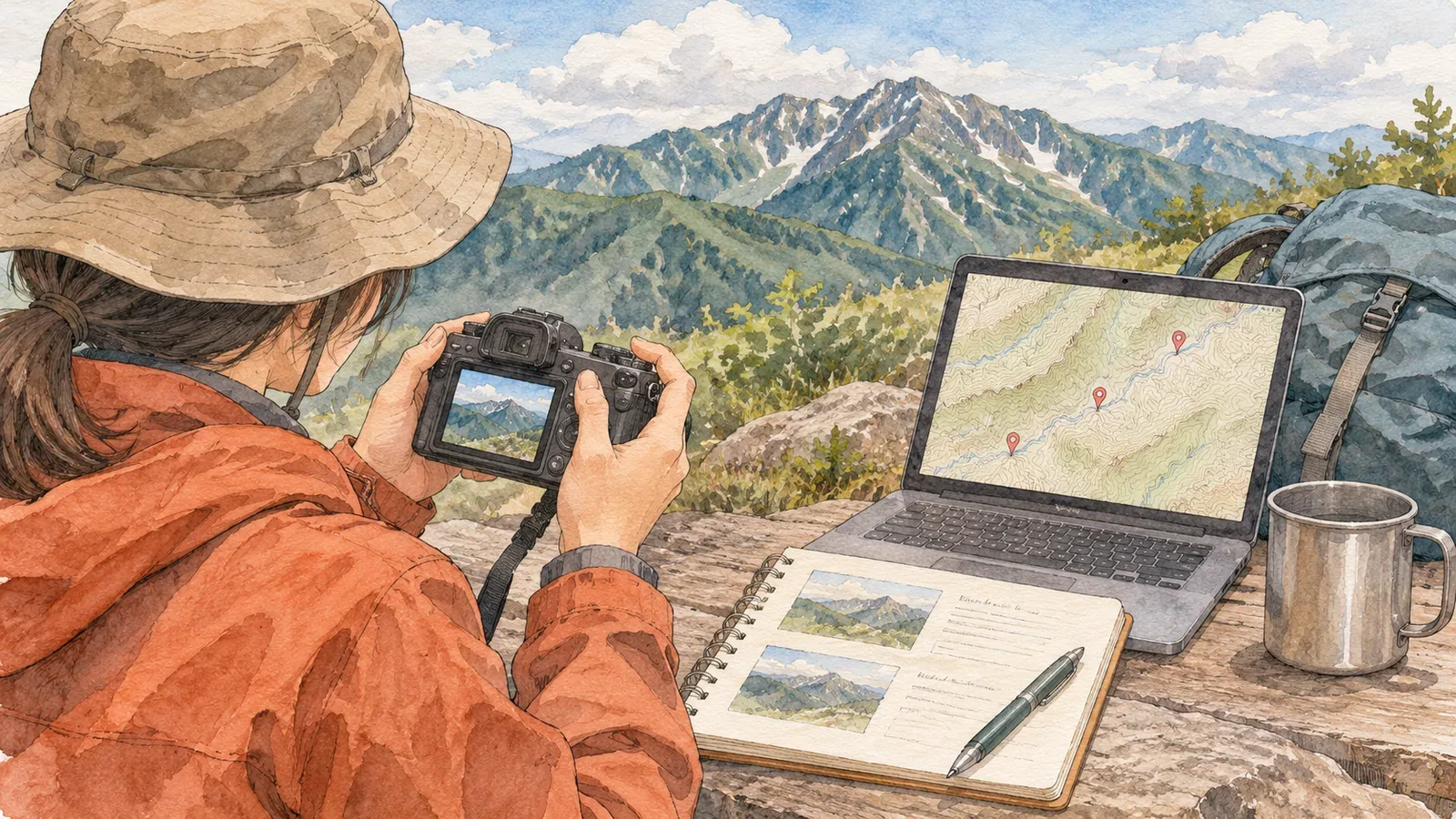
Before deleting similar photos, check when and where you took them and keep the clues separately. Even photos that look alike on screen can show small differences in a trail sign or foreground ridge that help you locate the camera. Here is a way to compare times and places before choosing what to delete.
Three clues to keep before deleting photos
Several shots in the same direction from a ridge can look nearly identical. Delete them too soon and you may later struggle to tell whether a photo was taken before or after a junction. Keep three clues before you start deleting.
The first is the date and time, the second is location data, and the third is a note of the mountain and place names. The Canon EOS Kiss X10i manual explains that the date and time are recorded with the image. According to Google Photos Help, a location can be saved by the camera, added manually or estimated from clues such as landmarks. Start by checking what information each photo still has and how it was added. The place-name note gives you something to work from if the first two clues are missing.
The shooting time depends on the camera clock
Sorting by shooting time assumes the camera clock was correct. Nikon's Z f guide asks you to set the time zone, date and time before use so the camera records the right timestamp. Turning daylight saving time on moves the clock forward by one hour. A flashing t icon on the shooting display means the internal clock has reset and timestamps will be inaccurate. The clock uses a separate battery. The guide says it takes about two days to charge fully and powers the clock for about a month once charged.
The Canon EOS Kiss X10i manual says the settings may reset if the camera is stored with its battery removed, the battery runs out or the camera is left below freezing for a long time. It also asks you to verify the date and time after changing the area or time difference. The editors suggest checking for clock drift after storing the camera without its battery over winter or after changing settings for a trip.
Before deleting similar photos, sort them by time and look for one-hour shifts or discrepancies with the surrounding shots. On these models the daylight saving setting makes a one-hour difference, so it is one setting to check. Check the area and any changes made partway through the outing as well. If you photograph the same reference clock before and after a hike, you can use it to roughly check the recorded times later. Consult your model's manual for settings and reset conditions.
Check which photos have location data
The map in Google Photos shows only photos with a location set. A photo can also be missing from the map you are viewing because it is outside the visible area. Check the details of each image. Google Photos cannot update or remove a location automatically added by the camera. It can change or remove estimated locations and locations added by hand. Keep track of what is stored in the original photo.
On iPhone, open Settings, then Privacy & Security and Location Services to check permissions for each app. After changing the Camera permission, take a test shot and look at its information. Turning off Location Services altogether also affects apps such as hiking maps. You can adjust Camera's permission separately. Check the official guidance for other cameras and photo apps.
Check each sequence of similar shots for a photo with a location and keep it as a reference if there is one. Even photos taken seconds apart can come from different places or face different directions. Before applying that location to nearby shots, compare the signs and terrain. Mark inferred locations as “estimated” to distinguish them from recorded positions. If you cannot work out a location, leave the photo off the deletion list for now.
Keeping a clue and making it public are separate decisions. Apple's iPhone guide explains that sharing photos can also share metadata such as location. If you download a photo from Google Photos and email it, the original camera location can show up. Even when the location is hidden, viewers may infer it from landmarks in the image. See the related article for how to handle locations when publishing.
Use GSI Maps to note locations for untagged photos
For sequences without location data, make a place note when you get home. On GSI Maps, from the Geospatial Information Authority of Japan, you can look up a point's elevation and coordinates. Coordinates are shown both in degrees, minutes and seconds and in decimal degrees. You can draw a route to generate an elevation profile and move the pointer along it to see the height at each point. This can help you compare the photo sequence with the ascent and descent.
The GSI list of major Japanese mountains has multiple entries with the same name and different prefectures or elevations, such as Asahi-dake, Komagatake and Nantai-san. Some notes record changes in elevation after a survey point was revised or changes or corrections to a name. Okina-san, for example, is listed with a name change.In your notes, write the prefecture alongside the mountain name, and record the date you checked the elevation.The list alone cannot identify a mountain in a photo. Mark any mountain you cannot verify as “unconfirmed.”
For each hike, you can note the date and the times shown by the camera for the first and last photos, the mountain and prefecture, the location name (a junction, hut or summit, for example), the status of the location (recorded in the photo, checked later on a map or unconfirmed), and the photo you want to keep and why. Make this list before marking similar photos for deletion.
Summary: check the time and location before deleting
Before deleting photos, check for clock drift, sort by whether a location is recorded, write place notes and finally mark possible deletions.If you flag the photos without deleting them yet, you can review them with your notes. The editors suggest this order based on the way these tools work. Choose which photos to remove according to the purpose of your hike.
References and sources
- Nikon Z f Guide: Setting the Date and Time
- Canon EOS Kiss X10i Advanced User Guide: Date, Time and Zone
- Geospatial Information Authority of Japan: Find the Elevation of a Location
- Geospatial Information Authority of Japan: Elevations of Japan's Major Mountains
- Google Photos: Understand, find and edit your photos' locations (iPhone and iPad)
- Apple: Share photos and videos on iPhone
- Apple: About Privacy and Location Services in iOS, iPadOS and watchOS