
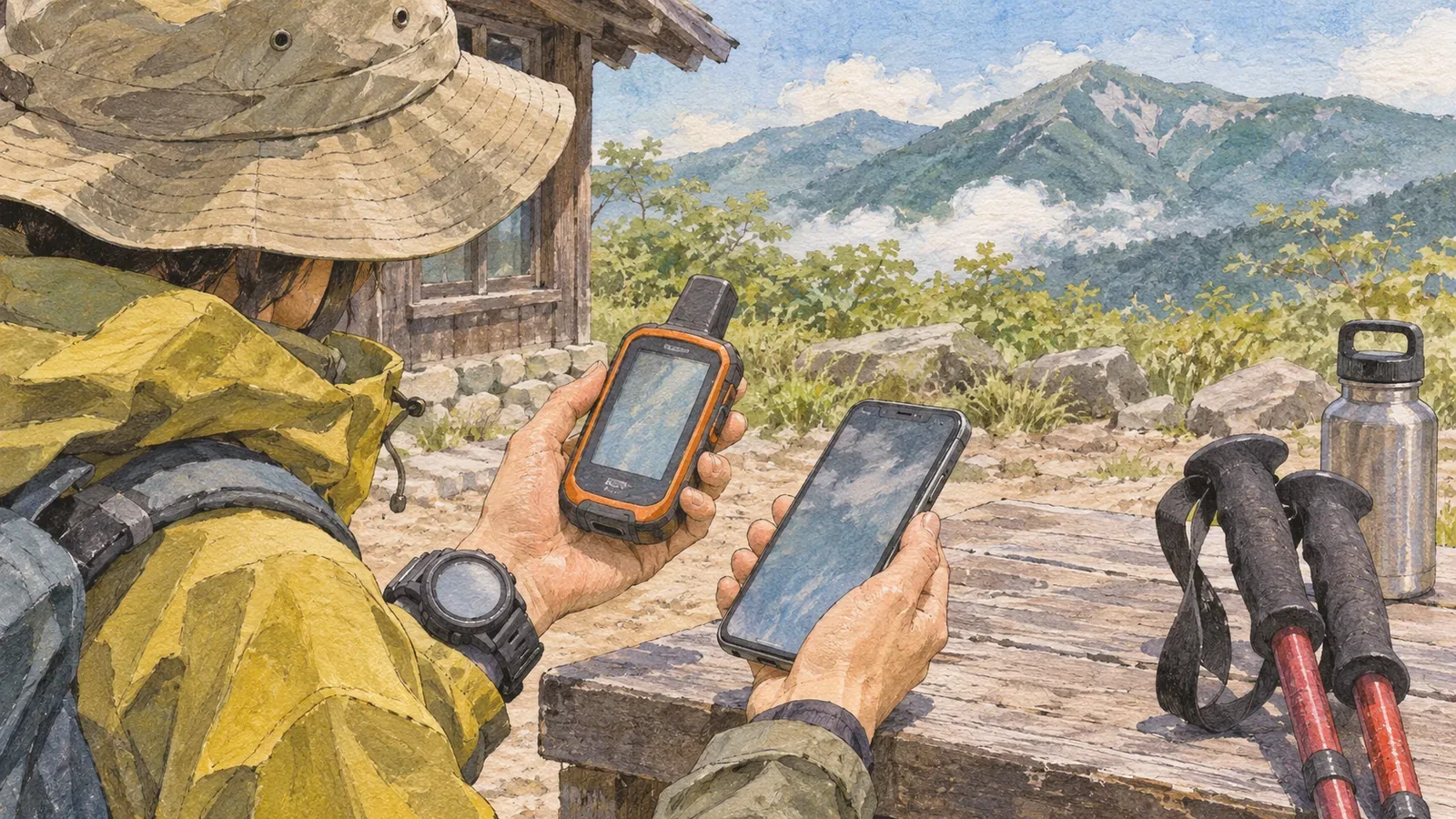
When you turn on your GPS device at the trailhead, check the device’s guidance to see whether it is still waiting for a fix or ready for you to check your position. A dot on the screen or a certain number of seconds since startup cannot confirm it by itself. Using Garmin, Suunto and Android documentation as of October 29, 2026, this article distinguishes powering on, being ready to locate, and checking how recent a position is. A fix just after startup can still be accurate.
Turning on the device and acquiring satellites are separate steps
The Garmin manual for eTrex 10, 20, 20x, 30 and 30x directs you to go outside to an open area, switch on the device if needed and wait while it searches for satellites. It says acquiring satellite signals may take 30–60 seconds. This is one example of a device that can be on while it is still acquiring satellite signals.
That timing concerns acquisition on those eTrex models. It does not give a wait time for every phone or watch. It does not imply the location is correct after 30 seconds or that the device is faulty after 60. Check your model’s manual beforehand to see how it signals that a position fix is in progress or complete.
Opening the map, reaching the activity recording screen and obtaining a position fix are separate events. Instead of treating the appearance of a screen as a signal to set off, ask what exactly its indicator tells you is complete. Check the shape and color of indicators on your own product. Other models may use different ones.
Interpret the GPS signal indicator using the manufacturer’s guidance
Suunto’s guide to improving GPS tracking advises waiting for the watch to find a signal before starting an activity that uses GPS. It describes a gray, blinking arrow that turns green or another color when the watch finds the signal. The guide adds that, if possible, you should wait a little longer before starting to let the watch get the GPS data it needs, especially in rugged terrain.
Suunto distinguishes finding the signal from waiting to acquire data afterwards. The same color does not necessarily mean the same thing on another product, and no fixed wait eliminates error. A changed indicator alone also cannot establish which side of a trail you are on.
The same guide explains that syncing with the Suunto app updates the watch’s GPS data file and describes how to check the update time. The time the assistance data was updated and the time the watch obtained your position refer to different things. An up-to-date file does not mean your current position has been obtained. Consult the instructions for your model to find the relevant display.
On a phone, check how recent the location is as well as where it appears
A phone can provide a position that was obtained earlier. Android’s developer documentation explains that getLastKnownLocation can return an old location, so the age should be checked. The method returns only a cached location and does not activate sensors to calculate a new fix.
This describes one Android method. It does not imply that your hiking app always starts by showing an old dot. Opening the app and powering on the phone are different events, and the method description does not establish that a phone will retain and display the same fix after a reboot. If you cannot establish how the app shows updates or obtains a location, leave that question open.
Android’s location documentation describes both the time of the fix and the time elapsed since then. The device’s wall clock can jump forwards or backwards if it is adjusted. To compare or order fixes, Android describes using elapsed time since boot, which only increases during that boot. That elapsed time is not suitable for comparing fixes from different devices or across reboots.
You do not need to calculate the internal values yourself. Check what any time on the screen refers to, and whether the app shows when its position is updated. The time you opened the app may differ from the time it obtained the location. If the display gives you no timestamp or update indicator, leave the age unconfirmed.
Find out before the hike what your own device shows you
Before leaving, we suggest noting the model of your device and the app, and writing down what it shows while acquiring a fix and after finding the signal, whether it shows the time or an update of the position, and whether it gives instructions for updating GPS data. The term GPS can refer to reception on the device, assistance data on a watch or a cached location on a phone.
At the trailhead, follow the manufacturer’s instructions somewhere you can wait safely and check the position against your surroundings. We also suggest comparing the known trailhead name or landmarks with the map. Avoid wandering to bring the dot onto a line or going down an unfamiliar path to test reception.
If you want to keep notes, record when you powered on the device, when you opened the app, the signal status shown and any location timestamp you can see. Leave unknown fields open. The notes can help you check the manual or explain the situation to support. They are not a performance test of accuracy after startup.
If the position still disagrees with your surroundings and you cannot establish where you are, avoid setting off on the assumption that waiting a few seconds more will solve it. Knowing the age of a fix does not confirm that the location is correct or the route ahead is safe. Another article explains how to stop and decide what to do when the indicated position does not match the terrain.
Summary: Check power, signal status and when the fix was obtained
After powering on, check whether the device is still searching for satellites and what the maker says to wait for. On a phone, distinguish the time of the fix from the time you opened the screen. Use the model’s documentation and indicators you can verify. A fixed number of seconds or a single color cannot confirm where you are.
References and sources
- Garmin, “eTrex 10/20/20x/30/30x: Acquiring Satellite Signals” — model-specific wait for satellite signals
- Suunto, “How to get more accurate GPS tracking?” — checking the signal and getting GPS data
- Android Developers, “LocationManager” — cached locations and new fixes
- Android Developers, “Location” — fix timestamps and elapsed time